Technical Implementation Guide of RIMS API for Restaurants Across Khyber Pakhtunkhwa
Read the Overview for how to connect, then follow Integration Steps. If you use the Windows utility, continue with installation, dashboard, and local POS URL. Full request fields, examples, and the public KPRA API are documented in the sections that follow.
Overview
The KPRA RIMS API enables restaurants to integrate their Point of Sale (POS) systems with the Khyber Pakhtunkhwa Revenue Authority (KPRA) Restaurant Invoice Monitoring System (RIMS) to automate the submission of sales transaction data for sales tax compliance. The API supports the recording of invoice details, ensuring accurate tax reporting as mandated by KPRA. It accepts input via JSON payloads or POST form data, making it compatible with various platforms.
Restaurants that run the KPRA RIMS Windows utility send the same invoice fields to http://localhost:3000/api/invoice on the local PC; the utility stores, retries, and forwards data to KPRA. Restaurants that connect their POS directly to KPRA use the public endpoint and formats documented in the following sections.
Two ways to connect
1. KPRA RIMS Windows utility Recommended
Install the utility on the restaurant PC (steps in KPRA RIMS Windows utility). Your POS posts invoice JSON to http://localhost:3000/api/invoice. The till or billing screen gets a quick local response; the utility forwards to KPRA in the background. If the internet link is down, invoices stay queued and sync when connectivity returns.
Use the Web dashboard to monitor pending and synced invoices and reports.
2. Live KPRA API
Your software calls KPRA’s public RIMS endpoint over the internet for each invoice (see API Endpoint and the sections below for URL, parameters, JSON/form examples, responses, and QR code rules). This path needs a stable connection at the time of each submission.
Use the same business rules and field meanings described in Request Parameters and Example Request (JSON).
Invoice Processing Flow
End-to-End Flow
- POS generates invoice and sends data to middleware or KPRA API
- System validates NTN, POS ID, key, and required fields
- Invoice is recorded in KPRA RIMS system
- Response with
transaction_idis returned - POS generates QR code using
pos_id+invoice_no
Integration Requirements
Internet Connectivity
For the live KPRA API, the POS needs internet when each invoice is sent. For the KPRA RIMS Windows utility, the POS only needs to reach the local PC (usually localhost); internet is required for syncing to KPRA, but billing can continue while invoices queue offline.
Platform Compatibility
The API supports seamless integration with a wide range of platforms, including popular frameworks and languages such as PHP, Java, Python, .NET, JavaScript, ReactJS, Node.js, Angular, Ruby, and Oracle, ensuring flexibility for diverse development environments.
Integration Steps
1. Obtain Credentials
Contact KPRA to register your business and receive POS ID and key against your restaurant NTN.
2. Choose how your POS connects
- Recommended: Install the KPRA RIMS Windows utility and POST JSON to
http://localhost:3000/api/invoice— see utility installation and local POS API. - Alternative: Call the live KPRA API (API Endpoint) with POST JSON or form data as in this guide.
3. Generate QR Code
- Use the
pos_idandinvoice_nofrom the API response to generate a QR code for each invoice. - Integrate the QR code into your invoice printing or display process.
4. Handle Responses
- Check the API response for success (status: 201) or errors (status: 400, 401, 403, 405, 500).
- Display appropriate messages to the user or log errors for debugging.
KPRA RIMS Windows utility
Install the utility on the PC that should run RIMS middleware (typically the same machine as the POS, or a dedicated PC on the same network). After setup, the service accepts invoices over HTTP on this machine and forwards them to KPRA when connectivity is available.
-
Download the installer package
Download the ZIP from:
https://kpra.gov.pk/api/kpra-rims-setup.zip -
Install the utility
Extract the package if needed, run the installer, and complete the steps shown by the setup wizard. Administrator rights may be required to register the background service.
-
Enter your KPRA credentials when prompted
During installation you will be asked for your restaurant credentials (NTN, POS ID, and key) issued by KPRA. For laboratory or developer testing, use the sample values shown in API Test User Credentials below (image and reference data).
When installation finishes
The RIMS middleware service runs on the PC (typically as a Windows service). Your POS can start sending invoices immediately using the local URL and JSON format in the next section. Response formats, error codes, QR generation, and the public KPRA URL are covered in the sections below.
Web dashboard
On the PC where the utility is installed, open a browser and go to:
http://localhost:3000/login.html
Sign in with the same credentials you configured for the middleware. From the dashboard you can review pending and synced invoices, retry failed submissions, export data, and use reports for sales and tax summaries. The home page http://localhost:3000/ shows a short status message if the service is running.
Sending invoices from your POS (local middleware)
Point your POS or integration to this endpoint on the machine where the utility is installed:
URL: http://localhost:3000/api/invoice
Method: POST
Content-Type: application/json
Use the same field names and data types as in Request Parameters and Example Request (JSON) further down. The body must include at least: ntn, pos_id, key, invoice_no, amount, tax_rate, tax_amount, total_amount, and date_time. You may add optional payment_mode as in the examples below.
Example JSON (minimum fields)
{
  "ntn": "K123456",
  "pos_id": "K123456",
  "key": "KPRA@123a",
  "invoice_no": "19",
  "amount": 200,
  "tax_rate": 5,
  "tax_amount": 20,
  "total_amount": 220,
  "date_time": "2026-04-02 12:12:12"
}
Example JSON with payment_mode
{
  "ntn": "K123456",
  "pos_id": "K123456",
  "key": "KPRA@123a",
  "invoice_no": "19",
  "amount": 200,
  "tax_rate": 5,
  "tax_amount": 20,
  "total_amount": 220,
  "date_time": "2026-04-02 12:12:12",
  "payment_mode": 2
}
Note: payment_mode = 1 means cash and payment_mode = 2 means card; default is 1.
API Endpoint
URL: https://api.kpra.gov.pk/rims-integration
Or
URL: https://kpra.gov.pk/api/rims-integration
Methods Supported: POST
Content-Type:
application/json(for JSON payloads)application/x-www-form-urlencoded(for form data)
Security
- All live API requests must use HTTPS
keymust be kept confidential- Do not expose credentials in frontend applications
- Middleware (
localhost) does not require HTTPS
Request Parameters
| Field Name | Data Type | Mandatory | Description |
|---|---|---|---|
ntn |
String | Yes | NTN provided by KPRA. |
pos_id |
String | Yes | POS ID provided by KPRA. |
key |
String | Yes | Authentication key issued by KPRA for the POS (required for local middleware JSON). |
invoice_no |
String | Yes | Invoice number of the receipt. |
date |
String | Yes (Use in Live API only) | Date and time of the transaction (e.g. YYYY-MM-DD HH:MM:SS). |
amount |
Numeric | Yes | Transaction amount (Tax Exclusive Amount) |
sales_tax |
Numeric | Yes (Use in Live API only) | Sales tax amount. |
tax_rate |
Numeric | Yes | Tax rate percentage. |
tax_amount |
Numeric | Yes (Use in windows utility only) | Sales tax amount for the line/invoice. |
total_amount |
Numeric | Yes | Total amount of the transaction. (Tax Included Amount) |
date_time |
String | Yes (Use in windows utility only) | Date and time of the transaction (e.g. YYYY-MM-DD HH:MM:SS). |
payment_mode |
Integer | No | 1 = cash, 2 = card. Omitted or non-numeric values default to 1. |
Field Mapping (Live API vs Utility)
| Purpose | Live API | Windows Utility |
|---|---|---|
| Date & Time | date |
date_time |
| Tax Amount | sales_tax |
tax_amount |
Duplicate Invoice Protection
Each invoice_no must be unique per pos_id.
Duplicate submissions may be rejected or ignored. POS systems must ensure
that the same invoice is not sent multiple times.
Example Request (JSON)
JSON Payload Example
                            {
  "ntn": "K123456",
  "pos_id": "K123456",
  "key": "KPRA@123a",
  "invoice_no": "INV123",
  "amount": 200,
  "tax_rate": 5,
  "tax_amount": 20,
  "total_amount": 220,
  "date_time": "2025-10-22 12:17:57"
}
cURL Example
cURL Request
curl -Method POST https://kpra.gov.pk/api/rims-integration `
-Headers @{ "Content-Type" = "application/json" } `
-Body '{
  "ntn": "K123456",
  "pos_id": "K123456",
  "key": "KPRA@123a",
  "invoice_no": "INV123",
  "total_amount": 220,
  "sales_tax": 20,
  "tax_rate": 5,
  "date": "2025-10-22 12:17:57"
}'
Response Format
The API returns responses in JSON format with the following structure:
- status: HTTP status code (201 for success, 4xx/5xx for errors)
- message: Human-readable message describing the result
- data: Object containing the processed transaction details (only for successful responses)
Success Response
Success Response (Status: 201)
{
  "status": 201,
  "message": "Invoice created successfully.",
  "data": {
    "transaction_id": 8843481,
    "invoice_no": "INV123",
    "pos_id": "K123456",
    "date_time": "2025-10-22 12:17:57"
  }
}
Error Responses
| Status Code | Message | Description |
|---|---|---|
| 400 | Bad Request | Invalid or missing required parameters. |
| 401 | Unauthorized | Invalid POS ID or authentication failure. |
| 403 | HTTPS required | Non-HTTPS request. |
| 405 | Method Not Allowed. Use POST. | Invalid HTTP method used. |
| 500 | Server error. Please try again later. | Server or processing error. |
Retry Policy
- If API returns 500 or network error → retry after 5–10 seconds
- Do NOT retry if response is 201 (success)
- Ensure duplicate protection before retry
- Middleware handles retries automatically
Validation Rules
invoice_no: max 50 charactersamount/total_amount: must be greater than 0tax_rate: between 0–100date/date_time: valid datetime format
Note: Future versions of the API may be released under versioned endpoints
(e.g., /api/v1/) without breaking existing integrations.
Developer Resources
These files live in the same folder as this guide. Use them to explore the API, run sample requests, or adapt a PHP client in your own project.
OpenAPI (Swagger)
OpenAPI 3.0 description of the live KPRA endpoint and local middleware (/api/invoice). Import into Swagger Editor, Postman, or other codegen / documentation tools.
Postman collection
Ready-made requests for the live RIMS API and the local middleware. In Postman: Import → upload this file, then set variables or edit the URL/body as needed.
PHP sample client
Sample RimsClient class. Opening the link in a browser shows syntax-highlighted source and usage notes; from your own code, require this file (do not rely on the browser view in production). Use sendLiveInvoice for the documented live JSON shape (sales_tax, date), sendRimsIntegration if your server expects utility-style fields (amount, tax_amount, date_time) on /rims-integration, and sendToMiddleware for the local utility at /api/invoice. Configure base URL, NTN, POS ID, and key.
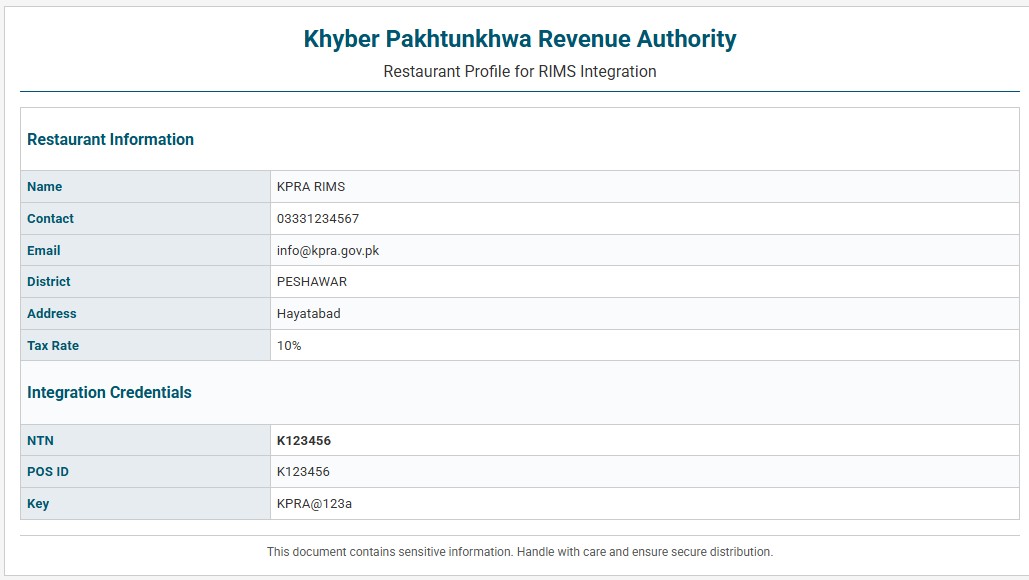
API Test User Credentials
The following credentials are provided for software developers to test the API.
QR Code API: Generate QR Code for Invoice Verification
KPRA requires each invoice to include a QR code that customers can scan to verify its authenticity. The QR code must encode a URL linking to the KPRA Invoice Verification API, which displays invoice details or an error message if the invoice is invalid and allows users to file a complaint if needed.
QR Code URL
QR Code URL Format
https://kpra.gov.pk/api/?pos_id=<POS_ID>&invoice_no=<INVOICE_NO>QR Code API Parameters
| Field Name | Data Type | Mandatory | Description |
|---|---|---|---|
pos_id |
String | Yes | POS ID provided by KPRA. |
invoice_no |
String | Yes | Invoice number of the receipt. |
Example QR Code API Call (URL)
Example URL
https://kpra.gov.pk/api/?pos_id=K123456&invoice_no=INV123QR Code Usage
Invoice Integration
Include the QR code on printed or digital invoices.
Customer Verification
When scanned, it redirects to the KPRA verification page, displaying invoice details or an error if invalid.
QR Code Generation Libraries
Use a QR code library compatible with your platform, such as:
- JavaScript: qrcodejs
- PHP: phpqrcode
- Python: python-qrcode
- Java: QRCode
- .NET: QRCoder
- Go: go-qrcode
This ensures seamless QR code generation across diverse development environments.
Support
Technical Assistance
For technical assistance, contact:
Gohar Ali, Assistant Director (Web), KPRA
WhatsApp: 03339591503
Email: [email protected]
Additional API Support Information
Integration Best Practices
This guide provides comprehensive details for integrating the RIMS API. For further support:
- Visit the official KPRA website for updates and FAQs.
- Ensure your integration handles rate limiting and retries for server errors (500).
- Best Practice: Validate all inputs client-side before sending to the API to reduce errors.
- For QR code generation, consider libraries like ZXing for mobile apps or browser-based solutions.
- If you encounter issues, include request/response logs when contacting support.